8. Sharing And Embedding
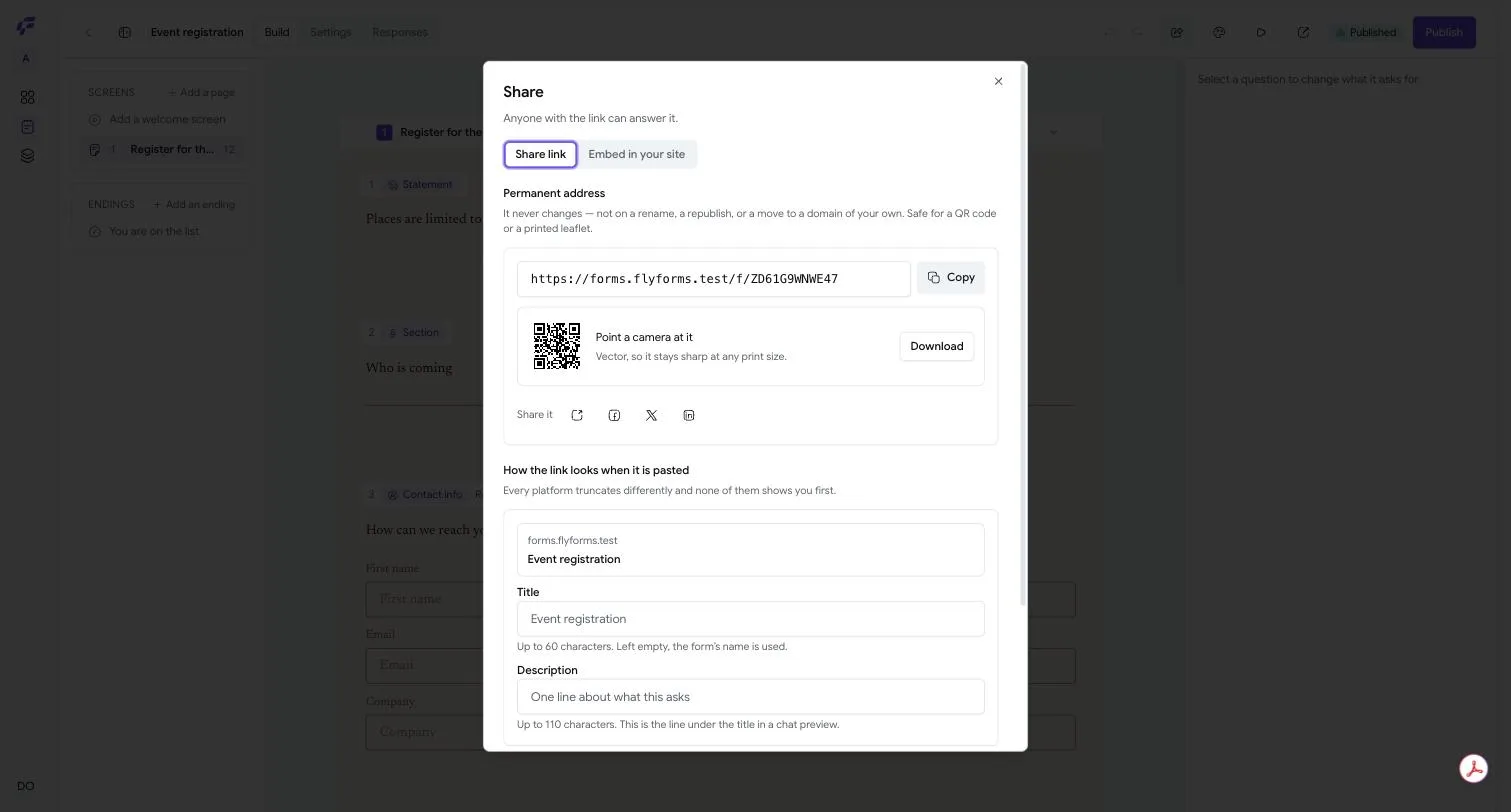
The Address Never Changes
Every form has one address, and it is permanent. The Share dialog says so where you cannot miss it:
It never changes — not on a rename, a republish, or a move to a domain of your own. Safe for a QR code or a printed leaflet.
That is a guarantee about how the product is built rather than a promise somebody intends to keep. The code that mints a form's address runs once, when the form is created, and there is deliberately no path that ever rewrites it. Rename the form as often as you like; publish version fourteen; point it at your own domain. The leaflet still works.
Press Share in the builder to open the dialog. When the form is published it reads Anyone with the link can answer it. Before that it reads These addresses are already reserved. They start answering when you publish — so you can put the link on a printed thing before the form is finished.
The Link
Under Permanent address is the address itself, with a Copy button that changes to Copied when it has.
Beside it, Share it offers four buttons: open the live form, and post it to Facebook, X or LinkedIn.
The QR Code
Point a camera at it, says the label, and underneath: Vector, so it stays sharp at any print size.
Download gives you an SVG file. Vector means it has no resolution of its own — the same file is a crisp two-centimetre square on a business card and a crisp two-metre square on a banner. A picture downloaded at a fixed size would not be.
How The Link Looks When It Is Pasted
Paste a link into Slack, WhatsApp or a social post and the service draws a little card for it. This section is where you decide what that card says, because — as the hint puts it — Every platform truncates differently and none of them shows you first.
Title is up to 60 characters. Left empty, the form's name is used.
Description is up to 110 characters, and it is the line under the title in a chat preview.
There is a preview of the card above the fields, so you can see it before anybody else does.
Your Own Domain
Also answer on your own domain — A second way to the same form. The permanent address keeps working either way. If your organization has verified a domain of its own, you can pick it here and get a second address on it. Nothing you have already shared breaks, because the permanent address does not stop working.
If there are no verified domains yet, the section says so, and tells you who can add one.
Search Engines
At the bottom of the dialog is a line about whether search engines may list this form, and where to change it. Being unlisted is not the same as being private: anyone with the link can still open it, listed or not.
Putting A Form On Your Own Site
The second tab is Embed in your site, and it becomes available once the form is published. Its promise: Works in WordPress, Squarespace, Wix, Shopify, Webflow — anywhere you can paste HTML.
The controls read as a sentence — Show it [where] as [how] — and then you copy the result.
Where It Appears
In the page puts the form into the page, where it sits among your own content.
Behind a button puts a button on the page and the form in a panel that opens when it is pressed. You then choose where the panel opens: Over the page (a 640-pixel panel in the middle, over a half-black backdrop; Escape closes it, and so does clicking the backdrop), In the corner (a 380-pixel panel sitting 16 pixels in from the bottom and the side), or Over the whole page.
As a whole page gives you a complete page containing nothing but the form — what you want when the form is the destination.
How It Is Embedded
A script is the normal choice. It brings one small piece of FlyForms with it, and in exchange the form can talk to your page — most usefully, it can tell the page how tall it actually is.
A plain iframe is the other one, and the caption is honest about the trade: No JavaScript at all. It cannot grow to fit the form, so set a height that suits it. Choose this when a site's rules do not allow scripts, and accept that you are sizing the box yourself.
Size, For A Form In The Page
Width — a percentage, or a number of pixels.
Height — a number of pixels. What that number means depends on which kind you chose, and the line under the field changes to tell you:
- With a script: A starting height only — the script replaces it with the form's own as soon as it loads. We measured this on a real site — a frame declared at 600 pixels grew to the form's real height by itself, and the page scrolled normally instead of a box scrolling inside it.
- With an iframe: A plain iframe keeps this height whatever the form needs, so leave room.
Full width — Edge to edge, breaking out of your page's content column. Best with a cover image. Measured on a real page: a form inside a 760-pixel column filled an 1849-pixel window, which is what "breaking out" means in practice.
Underneath is the snippet itself and a Copy button. Paste it wherever your site takes HTML.
Blending Into Your Page
Blend into the page drops the form's own background and its outer spacing, so your page shows through and the form sits flush in the section you put it in. The questions keep the form's colours, so choose colours that read on your page. Your whole design still applies: colours, corners, gaps, joining a field to its button, and your own CSS.
A Different Look For One Placement
With a script embed you can restyle one placement without touching the form, by
adding data-theme- attributes to the snippet's div. Open Make this embed match
your page in the share dialog for the list. For example, a dark subscribe box at
the foot of a page:
<div data-flyforms-embed data-form="YOUR-FORM-ID" data-base-url="https://flyforms.co"
     data-bare
     data-theme-background="#000000"
     data-theme-text="#f2f2f2"
     data-theme-primary="#2d6cdf"
     data-theme-radius="22"
     data-theme-joined></div>
The attributes you can use are data-theme-background, data-theme-text,
data-theme-primary, data-theme-primary-hover (colours as hex codes),
data-theme-radius, data-theme-gap, data-theme-button-gap (pixels),
data-theme-input-radius and data-theme-button-radius (four numbers such as
22 0 0 22), data-theme-alignment, data-theme-font-size, data-theme-density,
and data-theme-joined (no value needed).
Nothing you put in a snippet is saved on the form, so the same form can look different on each page it is embedded in. If any value cannot be drawn, the whole set is ignored and the form wears its saved design, rather than a mix of the two. These need a plan with custom colours, and the look carries on to the ending a respondent lands on.
Which Sites May Host It
By default, any. If you want to narrow that, Settings → Access has Sites allowed to embed this form, one address per line. That is on page 7, and there is an honest note about what it does and does not stop on page 11.
Closing A Form
On the forms list, the menu on a form offers Stop responses. The form then says so to anybody who opens it: This form is closed — It is not taking answers at the moment.
There is no separate "unpublish". To reopen a closed form, publish it again.
Two other closed states say something more useful than "closed", because being told the right thing matters when you have travelled to a link:
- Set to open later: This form is not open yet — It starts taking answers later. Try the link again then.
- Full, because you set a limit: This form is full — It has taken all the answers it was set to accept.
None of these tells a visitor why you closed it. You, opening your own form, are told rather more — including Publish it and this address starts taking answers when you have never published it at all.
Next: Reading what came in →