3. The Twenty Kinds Of Question
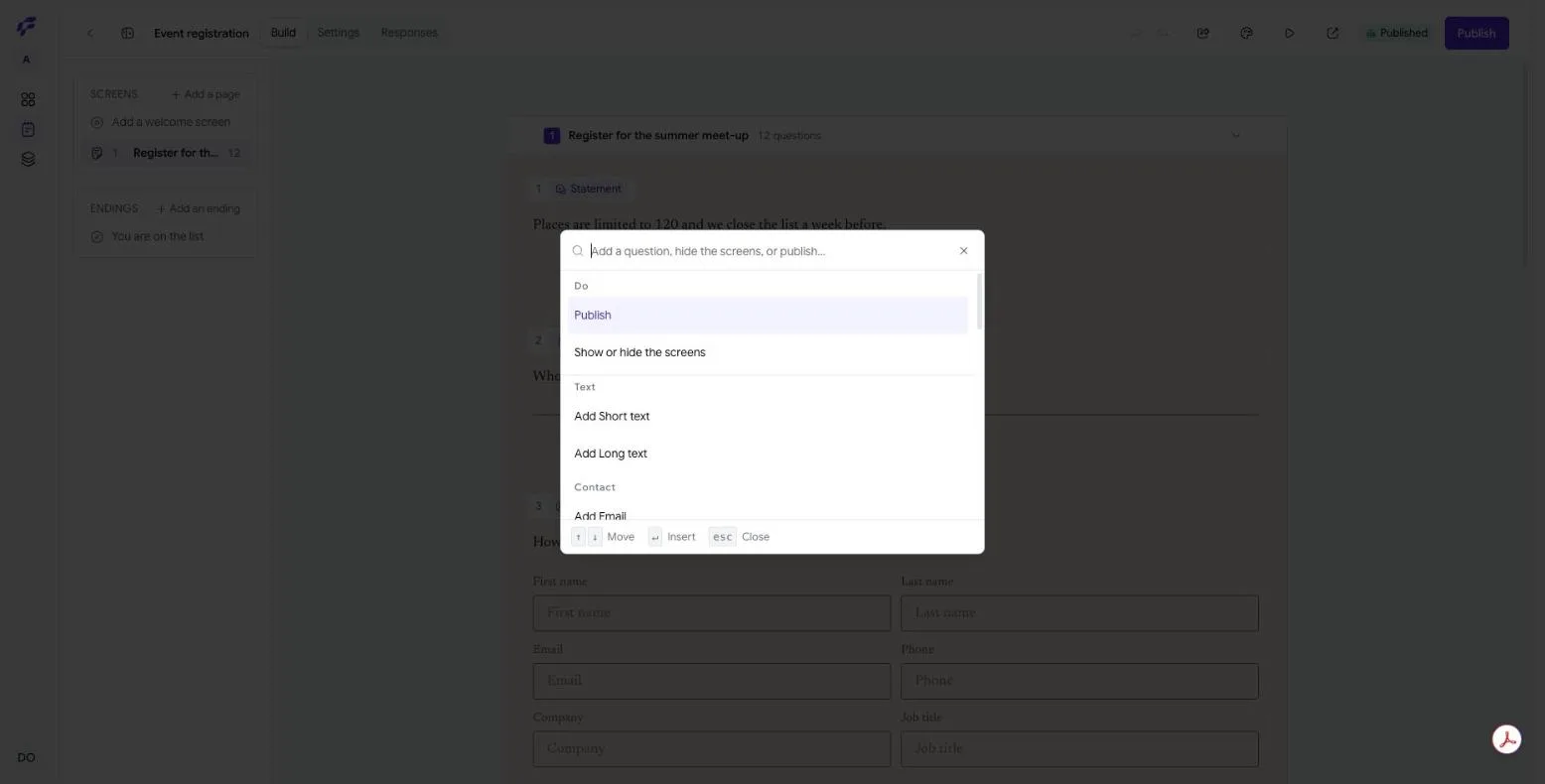
Adding One
Three ways, and none of them is more correct than the others.
The button on the page. Under the last question on a page is Add a question — or, on a page with nothing on it yet, Add the first question. It opens a searchable list.
The seam between two questions. Move the pointer into the gap between two questions and a small + appears on the line. Press it and the new question lands exactly there rather than at the end.
⌘K, anywhere in the builder. (Ctrl+K on Windows and Linux.) This is the fast path, and it is what the picture above shows. It carries the verbs as well as the question types, because from where you are sitting they are the same act: Publish, Show or hide the screens and Undo sit in a group called Do at the top, and everything under it is a question type. Type a few letters, press Enter, and the question is on the page. The keys are printed along the bottom: ↑ ↓ to move, ↵ to insert, esc to close.
There is a fourth for people who never take their hands off the keyboard: typing / into a question you have not written yet opens the same list, and choosing from it changes that question rather than adding another. Somebody who types a slash is telling us what the field they are standing in should be.
Whichever you use, you also get Row of 2, Row of 3 and Row of 4 at the top of the list, under Layout — a row of questions side by side, added in one go instead of setting three widths by hand.
Ask for a type your plan does not include and it is still listed, with a padlock and the words Not on your plan. Hiding a capability sells nothing and explains less.
The Twenty Types
They come in six groups, and the groups are how you find them.
Text
Short text — one line. A name, a reference, a job title.
Long text — a box. A description, an explanation, an anything-else-we-should-know.
Contact
Email — an address, checked for shape as they type it.
Website — a web address.
Phone — a number with a country code beside it.
Contact info — one block that asks for several things at once: First name, Last name, Email, Phone, Company and Job title. You choose which of the six appear, rename any of them, and mark any of them required.
Address — the same idea for a postal address: Address, Apartment, suite, etc., City, State or region, Postal code and Country.
Choice
Dropdown — a list that opens. Right for many options, where a long list of buttons would be a wall.
Single select — the options laid out, one answer.
Multi select — the options laid out, as many answers as apply.
Ranking — the options, dragged into an order.
Matrix — a grid. Rows are the things being asked about, columns are the answers; the same set of answers for every row. This is how you ask ten opinion questions without asking ten questions.
Number And Scale
Number — a number, with an optional smallest and largest.
Rating — stars, or numbers with a word at each end.
Net promoter score — the standard nought-to-ten question, with Not at all likely at one end and Extremely likely at the other. It has nothing to configure, and that is the point: somebody who wants an NPS wants the industry's version of it, not their own.
Date, File And Signature
Date — a date, a time, or both.
File upload — one or more files.
Signature — drawn with a finger or a mouse.
Layout
Statement and Section ask nothing at all.
A Statement is something to read: an explanation, a set of instructions, the terms somebody is about to agree to. A Section is a divider, for when a long form needs visible joints.
Because neither accepts an answer, neither can be made required, and neither counts towards how far through the form somebody is. That is deliberate — treating a statement as a question is how a form ends up with a required field nobody can fill in.
What You Can Set On A Question
Click a question and the panel on the right shows everything about it. There are no tabs to hunt through: it is one column, top to bottom.
The question itself is not in that panel — you type it on the question where it sits, in the box reading Ask a question…. What is on the right is everything about it.
On Every Question
Type — change your mind. A question can become another type without being deleted and rebuilt.
Description — the smaller line under the question. Explain what you need, if it is not obvious. It takes bold, italic and a link.
Short name — Used where the whole question will not fit — the responses table, an export, an integration. Respondents never see it. This is the one to fill in when the question reads Please tell us, in as much detail as you like, what prompted you to get in touch today and the column heading needs to read Reason.
Image — a picture on the question, with a Layout of Stack (above), Split (beside, filling its half) or Float (beside, with room around it). Split and Float then offer a Position of Start or End, which is which side it sits on.
Required — on everything except a Statement and a Section.
Width — how much of the row this question takes: 1, 5/6, 3/4, 2/3, 1/2, 1/3, 1/4 or 1/6, or anything between ten per cent and the full row on the slider underneath. The note beneath says what happens next: Fields that fit share a row. Always full width on a phone. So First name and Last name at a half each sit side by side on a laptop and stack on a phone, without you doing anything about it.
When to ask this — the rules, which have a page of their own next.
On Some Questions
Placeholder, Starts with and Units appear together on short text, long text, email, website, phone, number, dropdown and date.
Placeholder is the grey hint inside the empty box. Starts with is different and the panel says how: An answer already filled in, which a respondent can change. Unlike the placeholder, it is submitted. Units puts a word before or after the box — Shown beside the box — a currency, a unit, a suffix like "/month".
Rules is where validation lives, on short text, long text, number and email:
- Min characters and Max characters on the two text types.
- Minimum and Maximum on a number.
- One answer per person — Refuses an answer this form has already had — one entry per address, one booking per seat.
- Work addresses only, on email — Refuses gmail.com, outlook.com and other consumer providers.
Options appears on dropdown, single select, multi select and ranking. Type them in, press Enter for the next, or Paste a list to add several at once. Beyond the list itself:
- Add "Other" adds an option that asks the respondent to type an answer of their own. Any option can be made to do this, but the button is there because it is the common case.
- Score this question — Adds the points on the answers somebody chooses to the form's score, which a rule can send them to a different ending on. Each option then takes a number. This is how a quiz, a qualifier or a simple total works.
- Shuffle the order — Each respondent sees a different order, which removes the advantage of being first.
Box size on a long text — Small, Medium or Large. The size of a box is a hint about how much you expect, and people read it as one.
Scale on a rating — Stars or Numbers, with a From and a To. Choose Numbers and you also get a word for each end, so 1 reads as Not likely and 10 as Very likely. The note underneath points you at the right tool: A numbered scale with labelled ends is an opinion scale. For a fixed 0–10 with the standard wording, use Net promoter score.
Asks for on a date — A date, A time or Both.
Default country code on a phone — Auto detect (We pick it from where the respondent is. They can still change it.) or Specific (Everyone starts on this one. They can still change it.).
Parts on a Contact info or an Address — the six pieces listed earlier, each of which can be hidden, renamed, or made required on its own.
Rows and Columns on a matrix, plus Allow several answers per row — Each row becomes checkboxes instead of a choice.
A File upload has no size or type control of its own today. The ceiling is the platform's own — ten megabytes — and the question prints it under the button, so a respondent reads Up to 10 MB before they open the file picker rather than after their upload has failed.
Moving And Copying
Drag a question by its handle to move it. ⌥↑ and ⌥↓ (Alt and an arrow) move it one place at a time without touching the mouse.
The menu on each question offers Add question above, Add question below, Duplicate question, Move to a screen of its own and Delete question.
At the top of each question you will see what is true of it at a glance: its number, its type, the word Required if it is, and — if any rules govern it — Conditional, or a count when there is more than one.